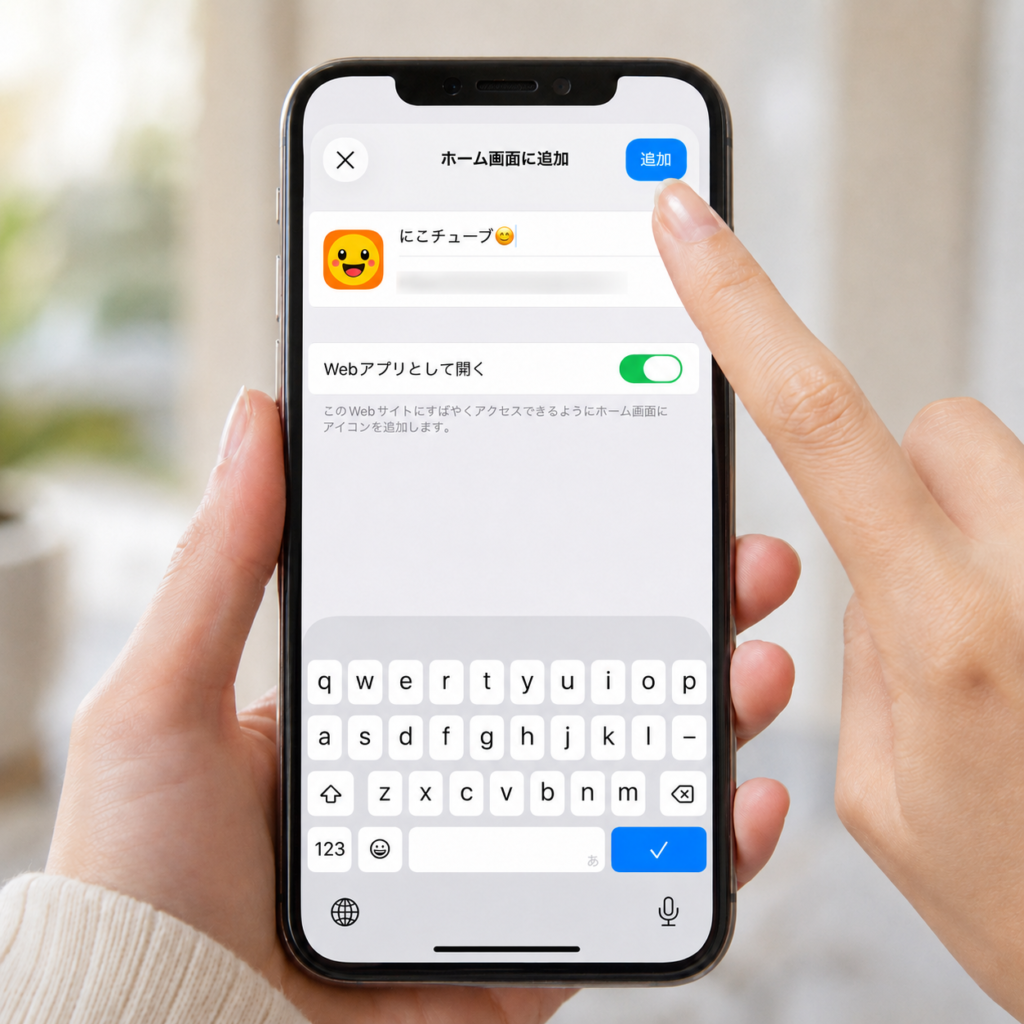
This explains how to add a web app to your iPhone's home screen.
This applies to all the apps we're introducing, so please use it as a reference.
Website
If you are viewing this in Safari,
We've provided explanations for both cases, including when viewing this on Chrome.
We are explaining it step by step with photos,
I'm sure there are areas where I fall short.
For Android devices, you can add items to the home screen in a similar way, but I'm not familiar with the specific procedure.
Please forgive me.
We are explaining using the apps "NicoTube" and "Travel Memories,"
Other apps use the same method.
[For Safari]
First, open the linked website in your web browser.
Once you open it, please look at the very bottom.
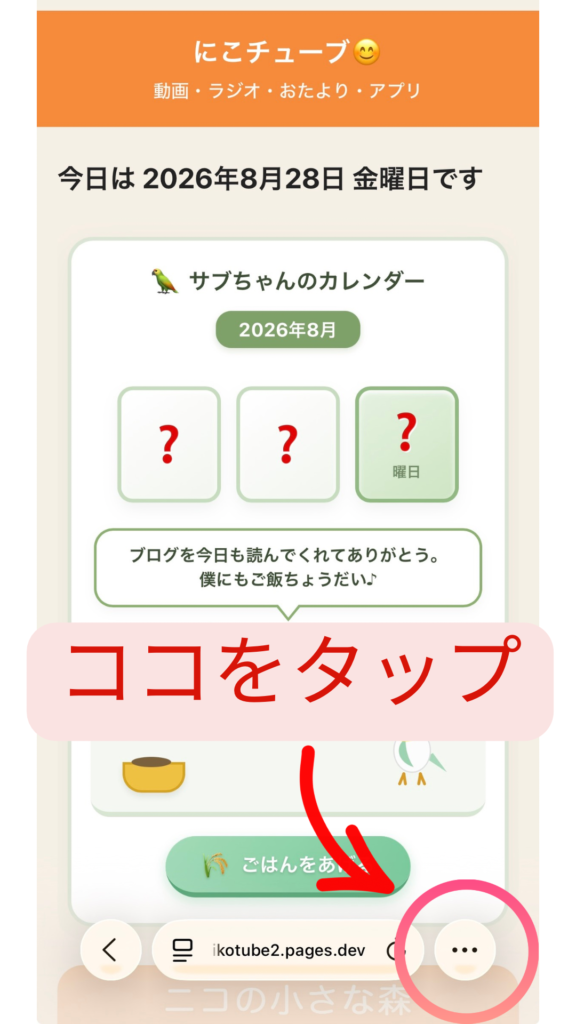
When you tap the three "..." symbols,
The word "sharing" appears.
Tap it.
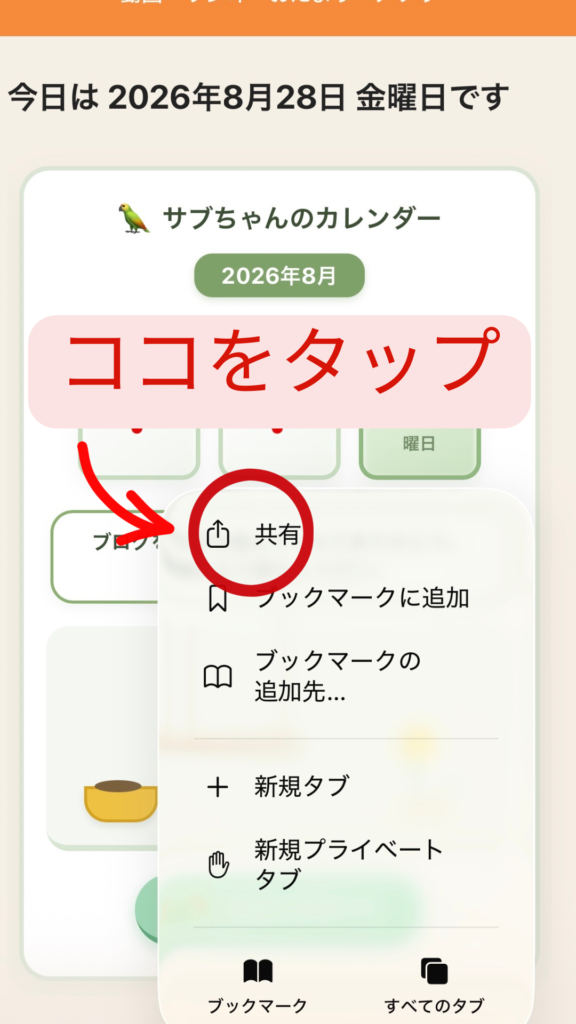
Tapping here will bring up a screen like the one in the picture below.
The bottom of the screen is cut off, so I want to see more of the bottom.
Please use your index finger to scroll up the screen.
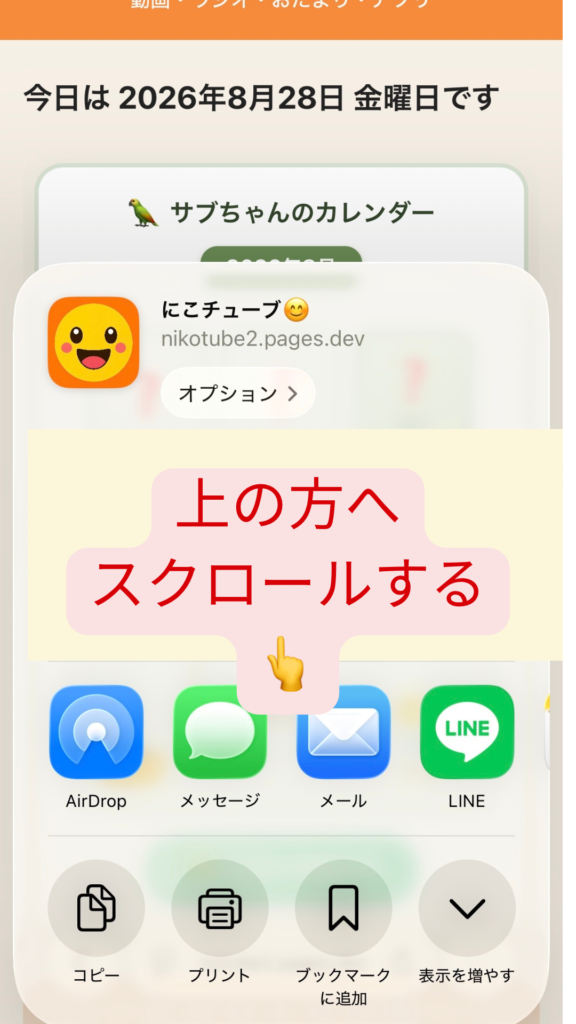
If you scroll all the way down the screen, it will appear as shown in the picture.
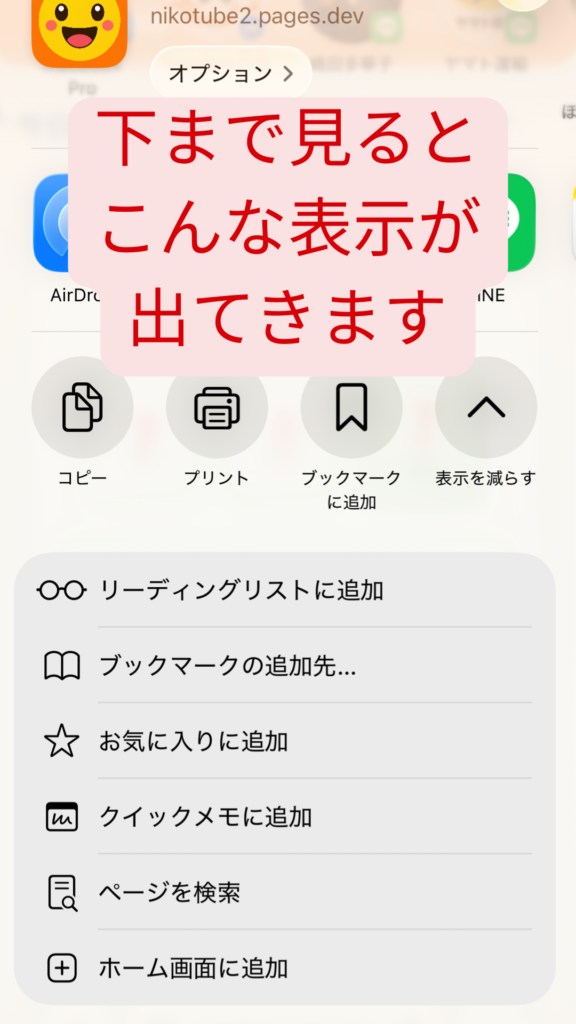
When this screen appears,
Tap "Add to Home Screen".
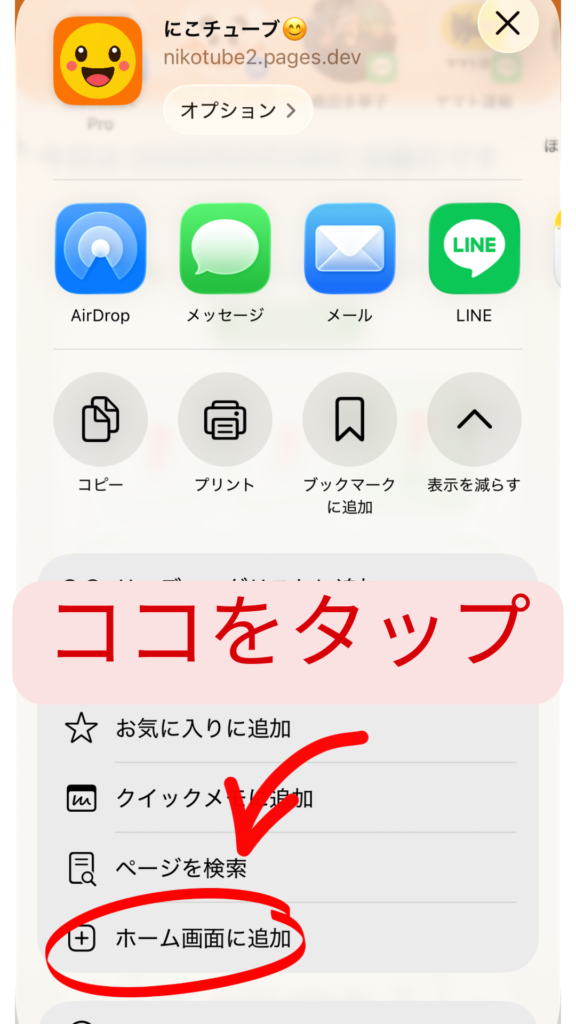
We're almost there!
Tapping here will take you to the next screen shown in the photo.
Tap 'Add'!
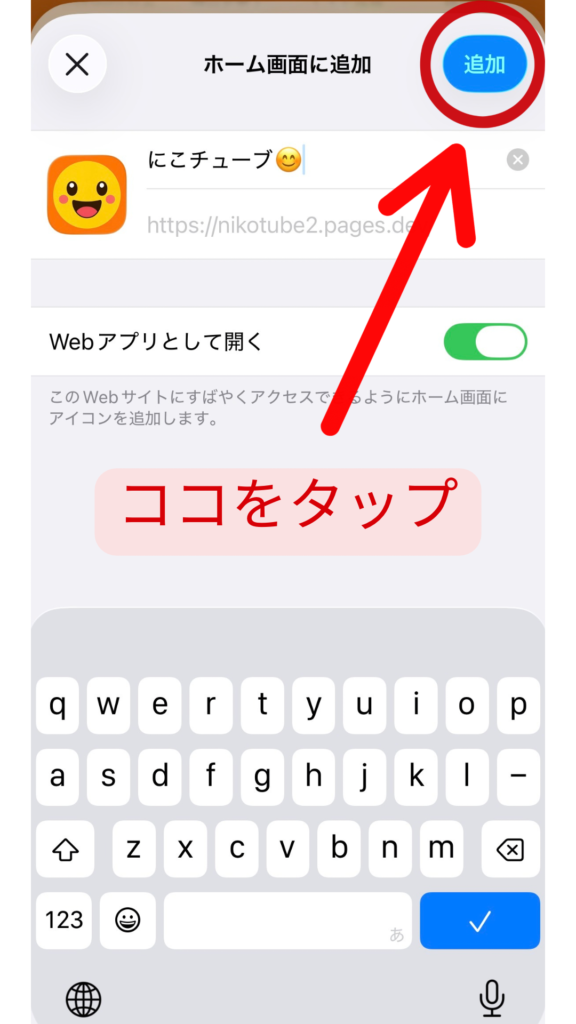
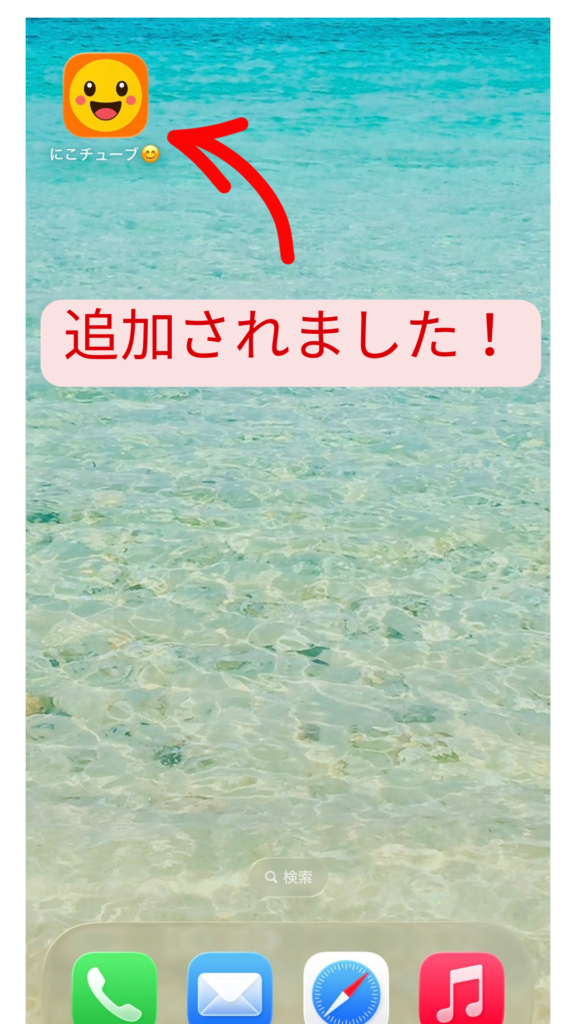
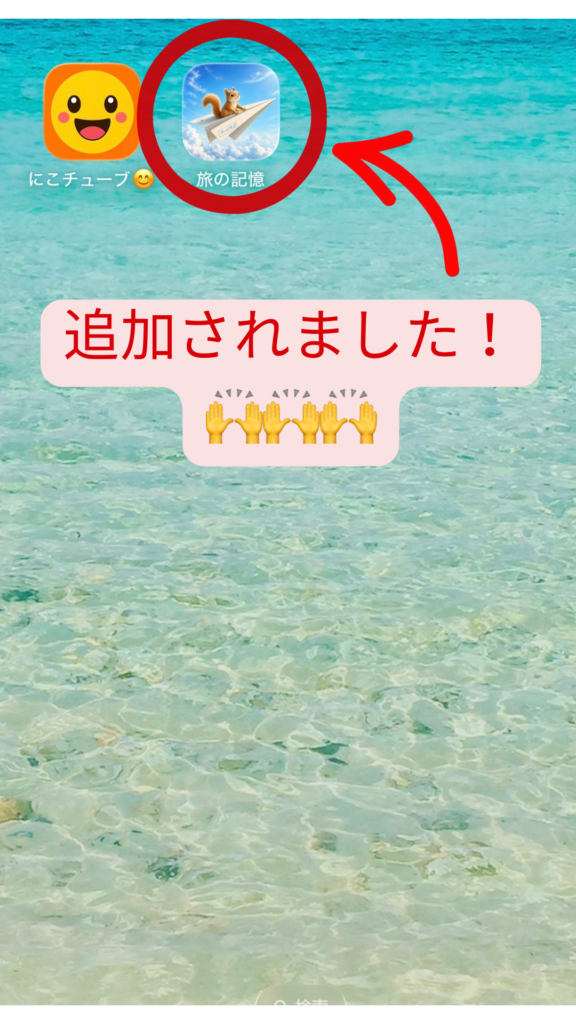
It's been added to your smartphone's home screen!
Once added, in a place with a signal,
Please open it once.
Now you can use it as an app.
thank you for your hard work!
[For Chrome]
First, open the linked website in your web browser.
Once you open it, please look at the very top.
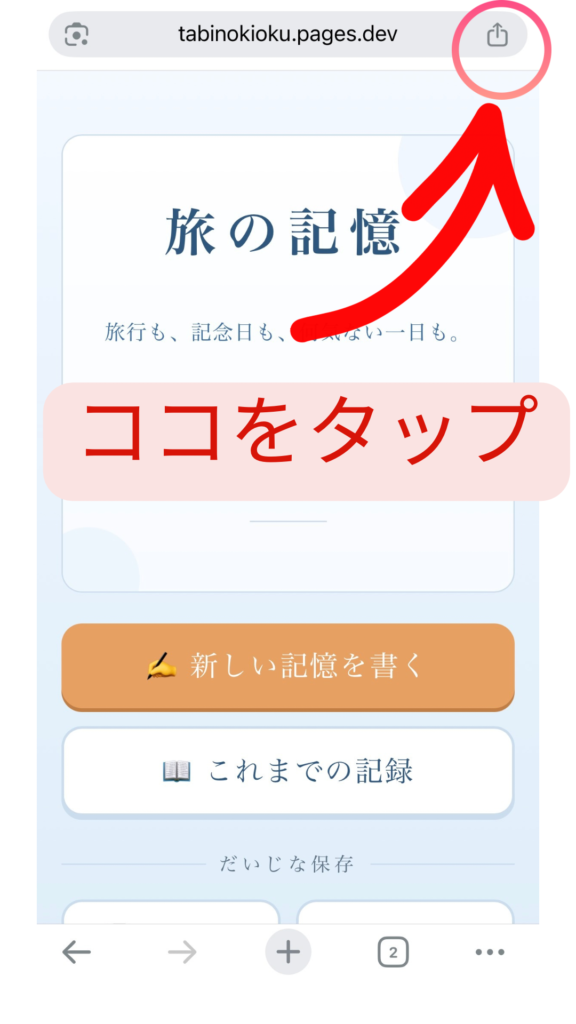
Tap the square with the arrow ↑ in the upper right corner.
Tapping will bring up the screen shown in the photo below.
Next, tap "Show more".
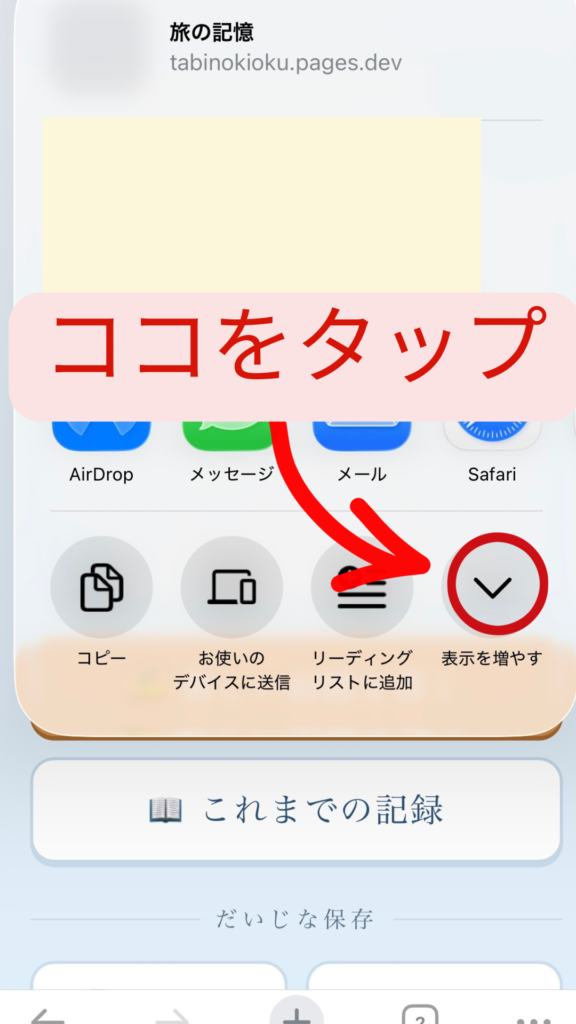
Tapping will bring up a screen like the one in the picture below.
The bottom of the screen is cut off, so I want to see more of the bottom.
Please use your index finger to scroll up the screen.
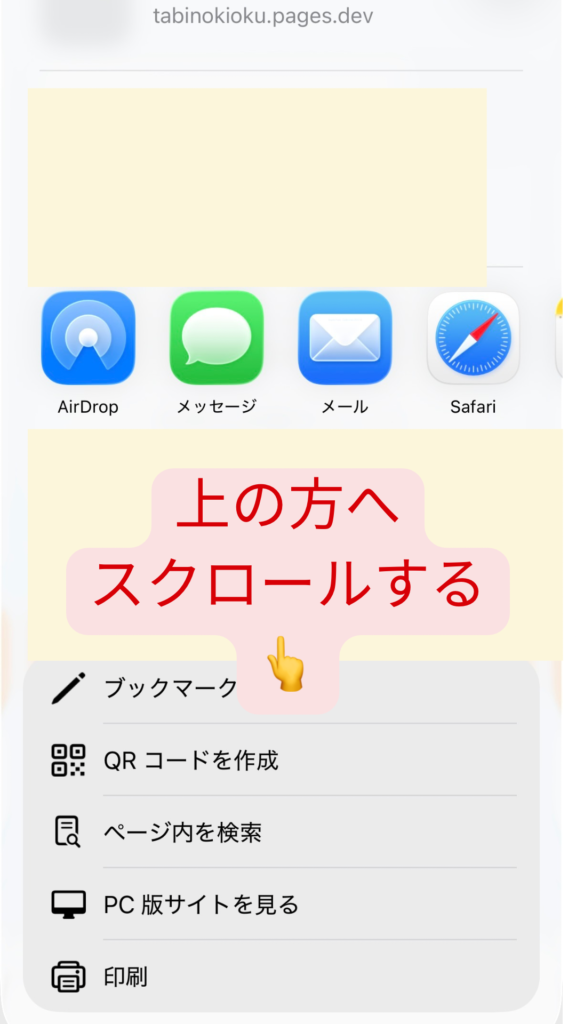
If you scroll all the way down, you will see a screen like the one in the picture.
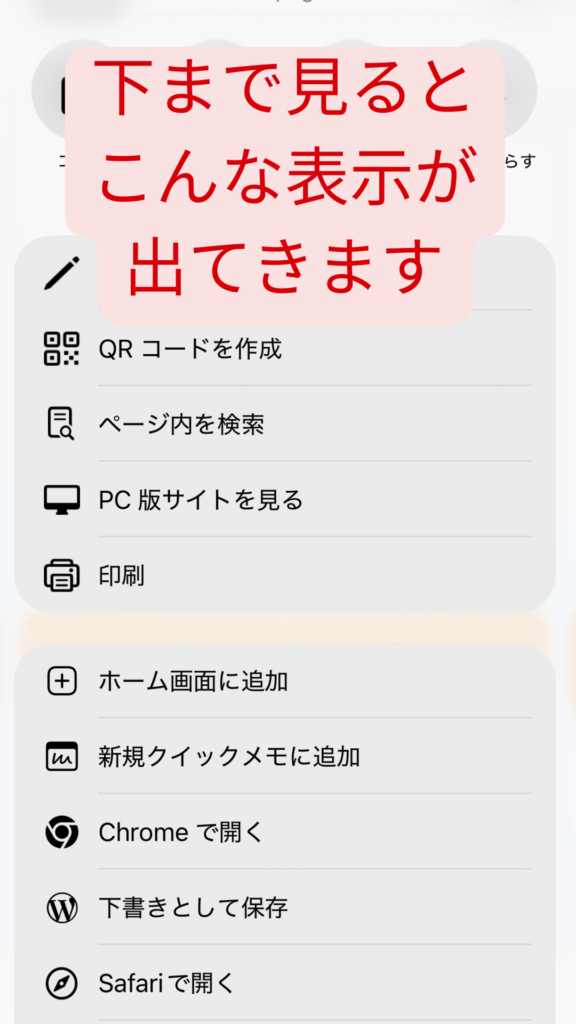
Tap "Add to Home Screen".
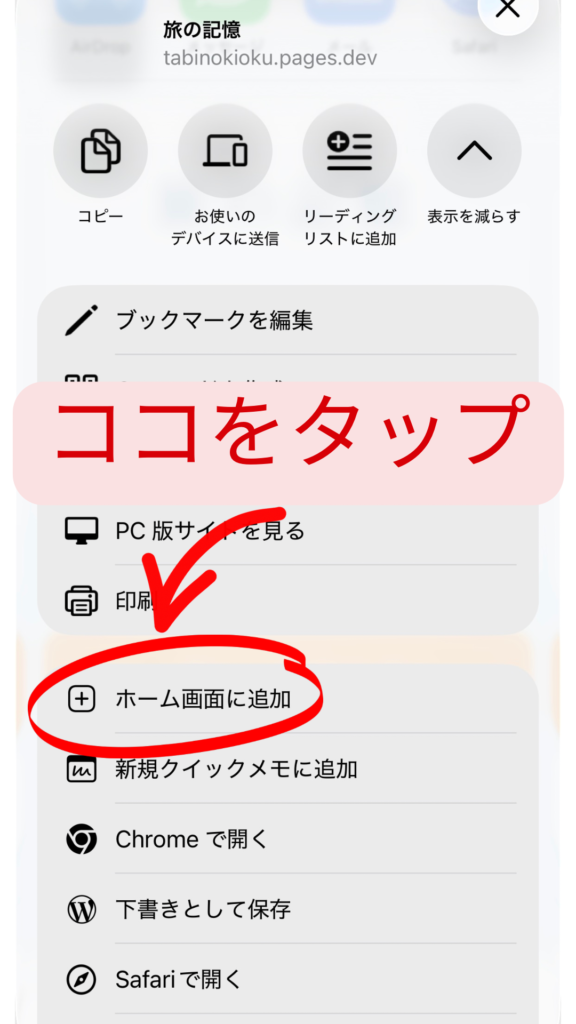
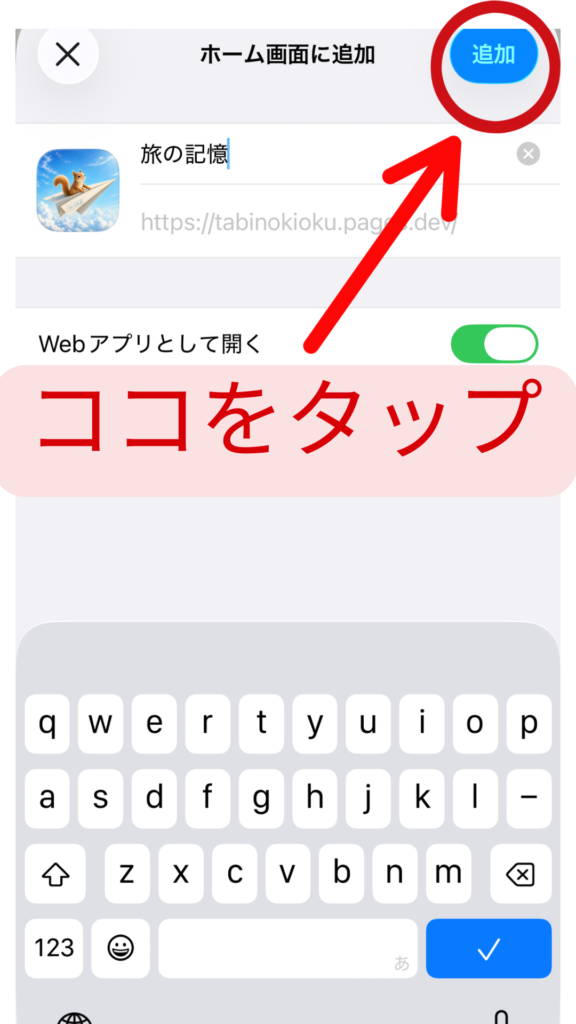
Tapping "Add to Home Screen" will bring up the following screen.
Tap 'Add'.
It has been added to the home screen!
【bonus】
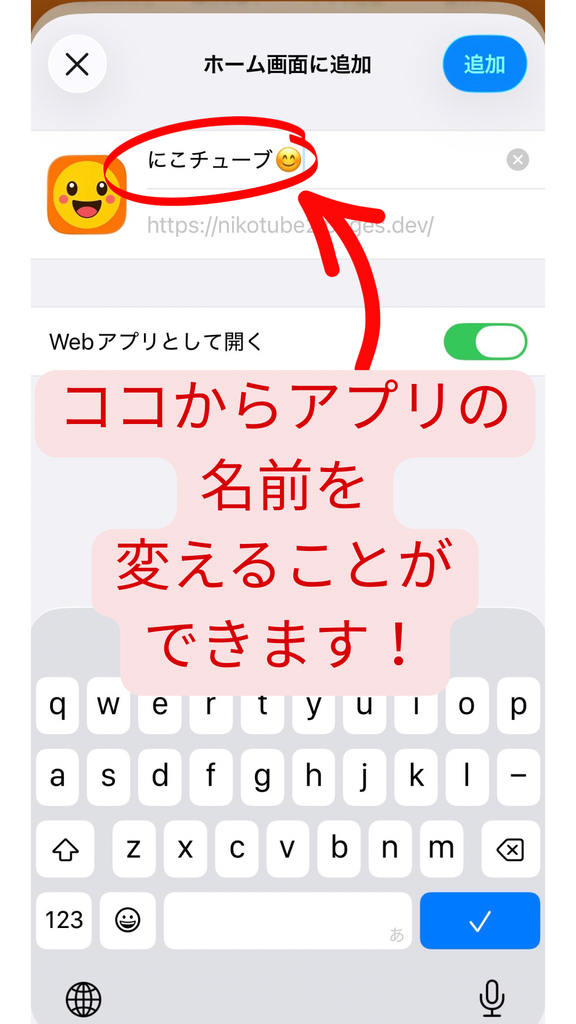
On the following screen when adding to the home screen,
Before pressing the add button,
You can change the name of the app.
The "blood pressure check app" simply uses "blood pressure" or a "blood pressure logbook".
"Forest Notebook" is similar to "Squirrel Notebook," etc.
"Travel Memories" can also be changed to something like "A Record of XX's Growth."